Showing posts with label graphics. Show all posts

Computer Engineering T-Shirt Design

By


Computer Engineering T-Shirt Design


A T-Shirt design I made for our Computer Engineering organization. The target concept is to incorporate fields in our course and make it look doodle-ish and flat.

Doodle art became famous and trendy in shirt designs these days because it is really catchy and plain, and it is not overdone with too much detail. I recommend you use pastel colors so it will not become really distracting to the eye when the design is printed in the tshirt.

Design was made in Adobe Photoshop.


The shirt was made available in green, black and gray.

School Lanyard Design

By

School Lanyard Design

Big and bulk lanyards have become a trend in most universities and sometimes, it is department-specific. Students get to sport not just their alma mater, but their course as well.

A lanyard I designed for University of Mindanao College of Hospitality Education's Tourism Management Department.

The target design is to highlight the department's and university's name. The color scheme suggested was pink and black.

This was done in Photoshop.

Cubism Art Tutorial in Photoshop

By

Cubism is an early-century art wherein cubes or polygons are used to portray an image. Applying this kind of art brings nostalgic feel to a photo.

In Photoshop, we can attain this kind of art using Pen Tool and average tracing skills.

Steps to Make a Cubism Art Tutorial in Photoshop


This tutorial will guide you on how to make a Cubism Art in Photoshop
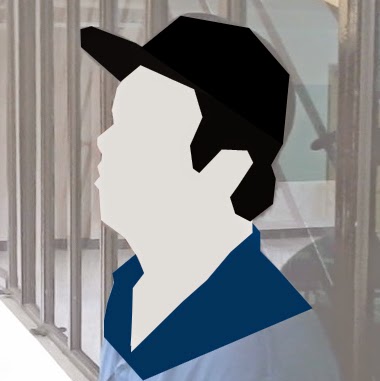
1. Open your base picture in Photoshop and make the image larger (won't matter if it pixelize 'coz the output will be a vector) via Image>Image Size. Set the value of either height or width to 2000px+. Let the other dimension recompute the value so it wouldn't lose its aspect ratio.


2. Trace the base parts. NOTE. DO NOT USE CURVES so that cubism will be portrayed.
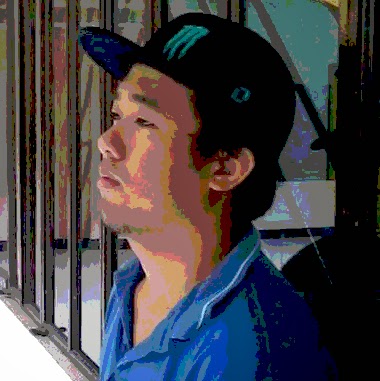


3. Posterize your reference picture via Image>Adjustments>Posterize. Set the value around 4-8 (Values will depend on the quality of the image. The higher, the more color and detail it will show). This will serve a guide to where the depths are, and the details to be shown.
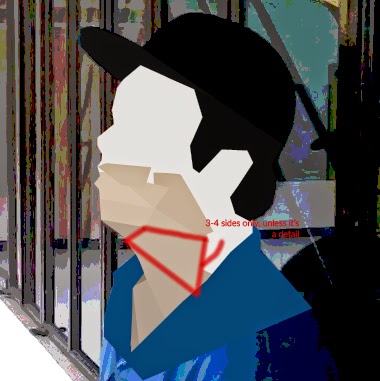


4. Start tracing the detail of the skin. I suggest you start at the bottom or at the edges, where the darker colors are usually present. NOTE. USE ONLY 3-4 SIDES, UNLESS IT IS A DETAIL. Doing such will make it make "cubism"-ic. Use the posterized reference image for the color. (Make separate layers for all the shapes)
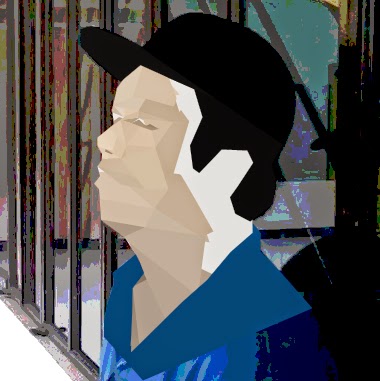


5. Continue tracing. Vary sizes. Use the posterized image as guide.


6. Finish the skin.


7. Proceed to face's details (eyes, brows, lips). NOTE that you can use multiple shapes for one detail to emphasize its depth.
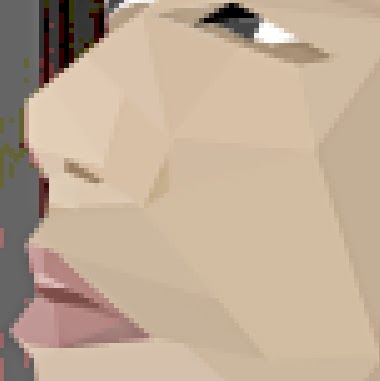


8. Trace the lips.
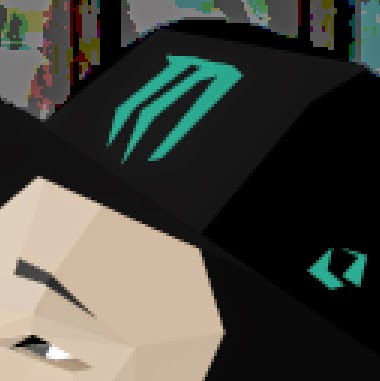


9. You can now add details to the hair, cap and shirt.


10. Shirt's detail.


Add further details to the ears and shirt and you're done! You can also overlay an canvass' texture go give it a nostalgic feel. 

Thanks for reading!

Electronics Engineering Ambigram Shirt Design

By

Electronics Engineering Ambigram Shirt Design


Electronics Engineering Shirts or Engineering Shirt Designs in general are difficult to design since many have already released different variation of the concept of Engineering. But in this post, I will be giving you a different concept that would give a semi-formal look to the design. 

The design is about ambigram, the words formed are "electronics" and "engineering". You just have to be creative in making the word art because the text will tell you the whole design. Regarding on the color, the user will have the luxury choosing it given that the colors complement each other.

The ambigram will be placed at the back of the shirt. The design might be paint printed or embroidered but I suggest embroidery. The actual design is shown below.

To balance everything, a name and the word "ece" is placed in front of the shirt. 


To cap things off, I thought at the conception of the whole design, it would be great to put trims of complementary colors in each side and at the shoulder of the shirt.


Knights of Enarch Organization Shirt

By


Knights of Enarch Organization Shirt Design


An organizational shirt made for Knights of Enarch. The concept is to highlight the organization's name and logo. The design was done in Photoshop.

Chibi Sketch Effect in Photoshop

By


Chibi Sketch Effect in Photoshop

Chibis are widely common because it looks like mini-toon characters that are really irresistible and tweeny.

A pseudo-classic and modern art design I made in Photoshop. The concept was to highlight the chibi
characters and make it look like it was hand-drawn and sketch in a piece of paper. Special thanks to Mimim!

In this art, the sketch effect can be easily achieved by using masks. Play along with the tips, opacity and sizes for more realistic results. I also used smudge tool to make the colors seem to overlap the sketch.

Simple 8-Bit Art in Photoshop Tutorial

By
8-Bit (also know as Pixel )Art involves purely squares. This is widely seen in Minecraft. Most of the players do this in-game, but it can be also be easily made with Photoshop. With the help of grids, you can easily make one like this


Steps in making a Simple 8-Bit Art in Photoshop


 First, you need to setup your grids. To do this, go to View>Show>Grid.


To adjust the grid sizes, styles and colors, go to Edit>Preferences>Guides, Grid, Slices and Count. You can either use lines, dashed lines etc. for the lines in your grid. You can also pick a desired color for the grid. You can also use the snap option for easy management of the shapes. To enable Snap to Grid, first  go to View>Snap and enable it. then check View>Snap To> Grid.

Now that your grids are set, it's time to create squares.

First, I created the outline of the art. Using Shape Tool, I created squares and rectangles along the grid. Take note you can use CTRL to further add shapes in the same layer.


Next is I made another shape layer for the skin.

Then I added some detail.
For further detail, I added some depth, which is darker with its base color. And this is what I came up with.

Raglan Shirt Design

By


Raglan Shirt Design


A chibi-retro inspired raglan design made in Photoshop. Target concept was to incorporate a chibi with a old-school type of design. Special thanks to Lablii!

The design printed in raglan.


Enhancing Scanned Pictures Using Polaroid Effect in Photoshop Tutorial

By
Scanned pictures can be restored and make it more presentable with the use of simple editing through photoshop. This tutorial will show one way of doing it.


Steps in Enhancing Scanned Pictures Using Polaroid Effect in Photoshop

We need the picture to be edited. I call this tutorial the polaroid effect. This is done by putting a rectangular shape above the picture enables it to look 3d. Choose shape tool or "u". Make one across the body of the man in the picture.
Copy the base picture and put it above the shape. Put some layer style in the shape. Drop shadow, inner shadow and color overlay. 
Do the same thing for all the people in the picture and different colors may be used. 

Basic Photo Editing in Photoshop Tutorial

By
This is a tutorial about basic photo editing that includes lens blur and date removal.


Steps in Basic Photo Editing in Photoshop Tutorial


First, let us remove the date on the bottom right by the use of the clone stamp tool or "s". This tool will copy the selected part of the image to another part of the image. This can be done by pressing "alt" while clicking on the part to be copied. Then click on the date to replace it by the copied part of the image. 
Let us enhance the color of the image by the use of the curve. Just move the rgb graph until desired color is achieved.
Using pen tool "p", trace the outline of the foreground. Select the shape then. Press "m", right click, select inverse, right click again, then feather 5. Go to filter tool bar, blur, lens blur and move the sliders until desired amount of lens is achieved.
This is the edited version of the image above. It is just easy.


Old Photograph Effect Photoshop Tutorial

By
There's that certain element of the past that makes it very special. I don't know what it is but it is a bit mysterious for me to merely think of the past. Maybe it is in the fact that "It’s the man's ability to remember that sets us apart. We are the only species concerned with the past." The quote is from the tv series heroes. I decided to edit some photographs of mine and make it old picture.
We need to have a base picture. What I did first was to put enhancement by using the curves. Just move the graph of blue, red and green to achieve the desired effect.
Next step is to add the black and white effect. This can be done by clicking the auto button or by manually putting the values. Check the tint box to have the color filter on the image.
I added a white border using just the shape tool.
Texture will be of great help to achieve the desired effect.
 I turned the layer effect to overlay and set the opacity to lower level.
 Lastly, folds will make the finishing touches just by turning its layer effect to overlay and lowering its opacity also.


Music Inspired Art Tutorial

By
This is a tutorial about a music inspired art. This art was originally a gift to a friend that is a musician. I had this art personalized just for her. First step is to use the shape tool and utilize the rectangular tool. I wanted to have a depth effect on the shape. I used inner glow and gradient overlay for it.
To add more style on the shape, I added few images that I got from the internet. I set the opacity to 30 percent just to emphasize the shape still.
 Use rectangular tool to make a long narrow line just like below. This shape will serve as the string on our guitar. As you noticed, I added a pattern to make a spiral like marking on the shape. I did the same process six times with different widths.
Guitars do have these vertical lines that's why I put some too. I just used a gradient overlay to give an emboss effect. 
After doing the previous step three times, I added two dots as you can see below.
This is the most important part of this art. Where I wanted to write her name with a musical flavor on it. Luckily there were plenty of musical icons that could support my plan. I used g clef to represent letter "s". I then put a gradient of light and dark blue on it.
 The rest are of the same process with the "s". Sharp icon for "h", whole note for "o", flat for "b", and lastly f clef for "e". And this is a personalized musical art. 


Powered by Blogger.